
GoDaddy to Microsoft 365: How to Move Business Email Without Breaking Things
A step-by-step plan for moving small business email from GoDaddy to Microsoft 365 — DNS, MX records, mailbox migration, and the risks to plan around.
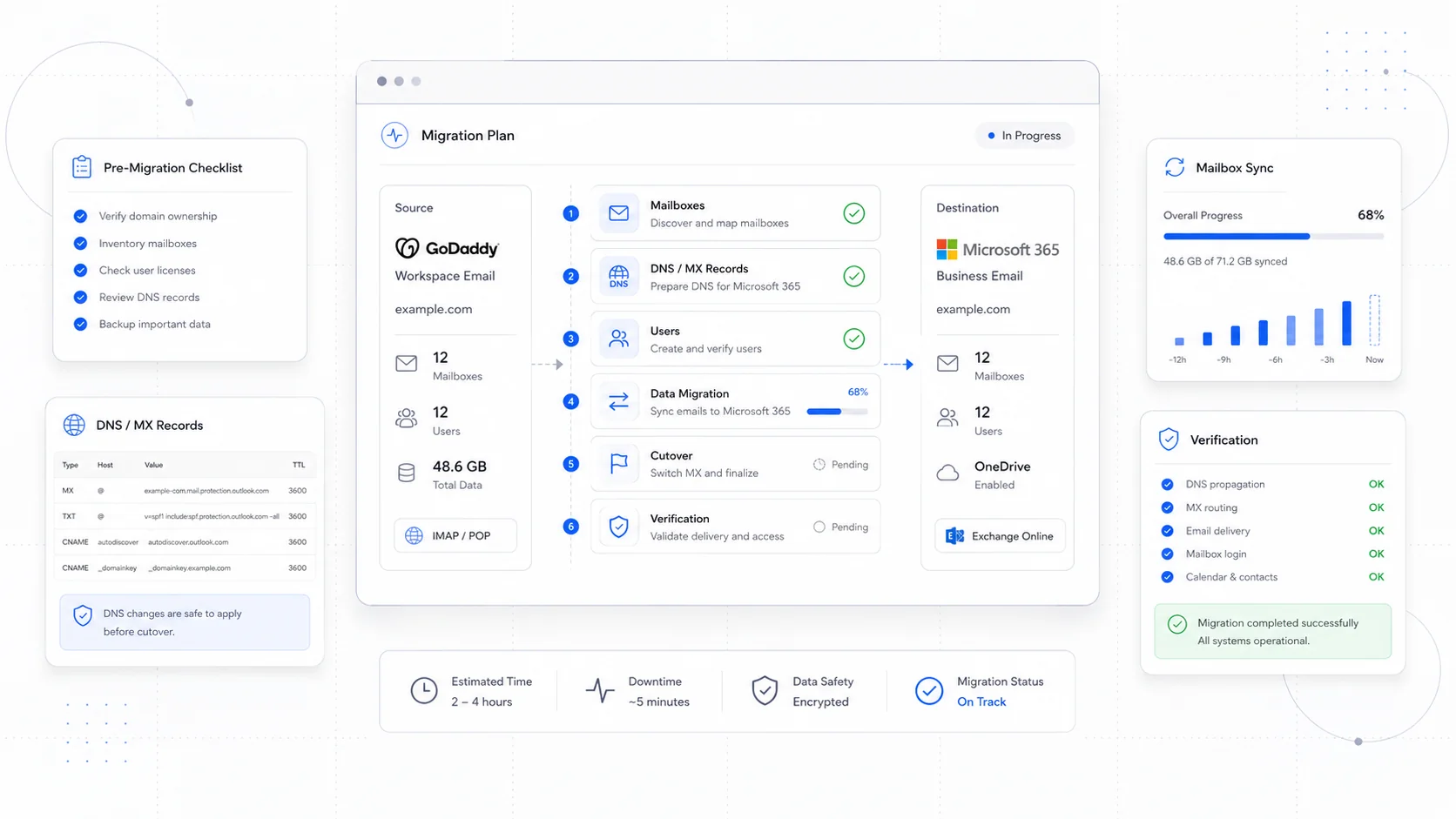
If your business email runs through GoDaddy or another legacy host, you are probably paying more than you need to for less than you should be getting. Most of the small businesses we help are surprised to learn that the Microsoft 365 mailbox they already use is being resold to them at a markup, with fewer admin controls, slower support paths, and no clean way to scale.
Moving email directly to Microsoft 365 is one of the most boring, high-leverage upgrades a small business can do. Done well, the team does not notice the cutover. Done poorly, the inbox goes dark on a Tuesday afternoon and the phones start ringing.
This guide is the plan we use when we move clients off GoDaddy and other resellers onto Microsoft 365 directly, usually as part of a hosting and migration project. It is opinionated, conservative, and designed to avoid the failure modes that catch most teams.
Why This Move Is Worth Doing
Resold Microsoft 365 from GoDaddy looks identical to direct Microsoft 365 on the surface. Underneath, three things differ:
- Cost: list price for the same plan tier is usually higher through resellers, especially after the first year.
- Control: the admin center is partially locked down. You cannot manage some tenant-level settings, conditional access, or advanced security features the way you would with a direct tenant.
- Support: when something breaks, you call the reseller, who calls Microsoft. Your urgency does not always survive the handoff.
For solo operators, none of that may matter. For a growing team with a few mailboxes, shared inboxes, calendars, and any compliance concerns, owning the tenant directly is almost always the right call.
We did this on the Sirius Canine Fertility rebuild alongside a full website migration, and on Mathis Moving, where moving off GoDaddy hosting also saved them a recurring $20/month. The email move is rarely the most exciting part of the project, but it is the part the team uses every day.
Inventory Before You Touch Anything
Before you create a single new mailbox, write down what you have today.
At minimum, capture:
- Every active mailbox, alias, and distribution list.
- Shared mailboxes and which users have access.
- Calendars (personal and shared) and any external sharing.
- Mobile devices and mail clients in use (Outlook, Apple Mail, iOS, Android, Thunderbird).
- Forwarders, auto-replies, and rules.
- Connected services that send email "from" your domain (CRM, scheduling tools, contact forms, marketing platforms).
- Current MX, SPF, DKIM, and DMARC records.
- Domain registrar login and DNS host (sometimes the same as the email host, sometimes not).
You can validate the current DNS and mail flow with a tool like MXToolbox, which is invaluable both before and after the cutover.
If you do not know what is sending email as your domain, you will discover it in production. That is the worst time to find out.
Choose the Right Microsoft 365 Plan
Microsoft 365 plans for small business are documented on Microsoft's site, and the right one depends on whether you need just email and Office apps or also conferencing, advanced security, and device management.
For most small service businesses, the practical decision tree is:
- Email only, light Office use → Microsoft 365 Business Basic.
- Email plus desktop Office apps → Microsoft 365 Business Standard.
- Email, Office, and security and device management → Microsoft 365 Business Premium.
Buy directly from Microsoft, not through a reseller. You can always add a Cloud Solution Provider later if you want managed support, and you keep ownership of the tenant either way.
Stand Up the New Tenant Before Cutover
Create the Microsoft 365 tenant and verify your domain before any email actually starts flowing through it. This is the longest gap you will have between "starting" and "doing anything risky," and that is intentional.
Steps that should happen first:
- Create the tenant with a temporary
.onmicrosoft.comdomain. - Add your real domain and complete the TXT verification record at your DNS host.
- Create user accounts, but do not assign them as the primary mail destination yet.
- Configure SPF, DKIM, and DMARC according to Microsoft's anti-spam guidance. DMARC at
p=noneis fine to start; tighten it later once you have monitored reports. - Decide on your migration method. For most small teams moving from GoDaddy's IMAP-based mailboxes, an IMAP migration to Microsoft 365 is the right tool. For Exchange-based sources, cutover or staged migration options apply.
Do this work on a normal weekday, calmly, before you announce anything to the team.
Migrate Mailboxes In a Quiet Window
Once the tenant is ready and the migration method is chosen, the actual mailbox move is mostly waiting.
For an IMAP migration:
- Confirm the source server hostname, port, and authentication method.
- Create a CSV with each user's source credentials.
- Run a small test batch first, with one or two mailboxes you control.
- Verify that messages, folders, and dates arrived correctly.
- Schedule the full batch for a low-traffic window (evenings or a weekend).
A few honest caveats:
- IMAP does not move calendars or contacts. Plan to export and re-import those, or have users re-add shared calendars after cutover.
- IMAP does not move rules or signatures. Document them ahead of time.
- Very large mailboxes (10+ GB) take longer than you think. Start the batch earlier.
While the migration runs, mail is still flowing to the old GoDaddy mailboxes. Nothing is broken yet. That is the point.
Cut Over MX Records Carefully
The cutover is the only step that visibly affects mail flow. It deserves a checklist.
Before the cutover:
- Lower the TTL on your MX records to 300 seconds (5 minutes), 24 to 48 hours in advance. This makes propagation fast when you flip them.
- Confirm one final delta sync of the IMAP migration so recent mail is in Microsoft 365.
- Have the old admin login open in case you need to reach back.
At the cutover:
- Update MX records to point to your Microsoft 365 tenant, per the values shown in the Microsoft 365 admin center.
- Update SPF to authorize Microsoft 365 (
v=spf1 include:spf.protection.outlook.com -allfor most setups). - Publish the DKIM CNAME records Microsoft generates.
- Re-check everything with MXToolbox and the Microsoft 365 setup checker.
- Send test mail in both directions, including to a Gmail address, to confirm authentication passes.
After the cutover:
- Leave the old mailboxes intact for at least 30 days. They will catch any stragglers from caches that have not refreshed.
- Watch the Microsoft 365 message trace for delivery failures.
- Update any third-party services (CRM, forms, scheduling, marketing) that authenticate against the old SMTP server.
If you are also moving the website at the same time, sequence the email cutover first or last, but never simultaneously. One change at a time makes problems diagnosable.
Don't Forget Calendar, Contacts, and Devices
Email is the headline. Calendar and contacts are where users feel the move.
Plan for:
- Exporting personal calendars and contacts from the old environment, then importing to Outlook on the web. Microsoft has a step-by-step import guide for contacts and similar guides for calendar.
- Re-sharing shared calendars in the new tenant.
- Removing the old account and adding the new account on every phone and laptop. Outlook on iOS and Android handles this cleanly; Apple Mail sometimes needs the profile fully removed and re-added.
- Resetting signatures, which do not migrate via IMAP.
Send the team a short, friendly email a few days before the cutover with screenshots of the new account setup. The smoother the device step, the fewer support requests you handle the next morning.
Tighten Security After the Move
Once mail is flowing and stable, harden the tenant.
Reasonable next steps:
- Enforce multi-factor authentication for every user. Microsoft's security defaults are a good baseline if you are on a smaller plan.
- Tighten DMARC from
p=nonetop=quarantineonce your DMARC reports show clean authentication. - Review external sharing and forwarding rules. Auto-forwards to outside addresses are a common compromise vector.
- Enable mailbox audit logging.
- Document the admin recovery account and store the credentials somewhere safer than a sticky note.
This is also a good moment to review your broader website care plan, since the same discipline that protects email applies to your site, your DNS, and your domain registrar.
When to Bring In Help
You can do this yourself. Microsoft's documentation is genuinely good, and the tools have improved over the years. Many small businesses still bring in help for two reasons: the cost of getting email wrong is high, and most owners would rather spend a Tuesday running their business than reading IMAP migration guides.
Sites That Grow handles GoDaddy-to-Microsoft 365 moves as standalone projects and as part of larger website rebuilds. If you are weighing the move, start with an audit of your current setup. Most of the value of a clean migration comes from the planning, not the cutover.
More posts from the blog.

From Contact Form to CRM: The Minimum Lead Pipeline Every Service Business Should Automate
A practical lead pipeline for service businesses: connect forms, calls, email, CRM records, reminders, follow-ups, and reporting so good leads stop disappearing.
The 2026 Website Content Refresh Playbook: Updating Old Pages Without Breaking SEO
A practical content refresh process for small business websites: how to update stale pages, preserve rankings, improve AI search visibility, and avoid SEO mistakes.

The AI Chat Widget Decision: When It Helps Leads and When It Hurts Trust
AI chat widgets can qualify leads and answer common questions, but they can also slow the site, invent answers, mishandle privacy, and damage trust. Here is how to decide.
Keep reading?
More field notes from building modern websites and software for real businesses.