
Google Search Console: The Five Reports Every Business Should Check Monthly
The five Google Search Console reports every small business should check monthly: Performance, Pages, Core Web Vitals, Sitemaps, and Manual Actions — with concrete actions.
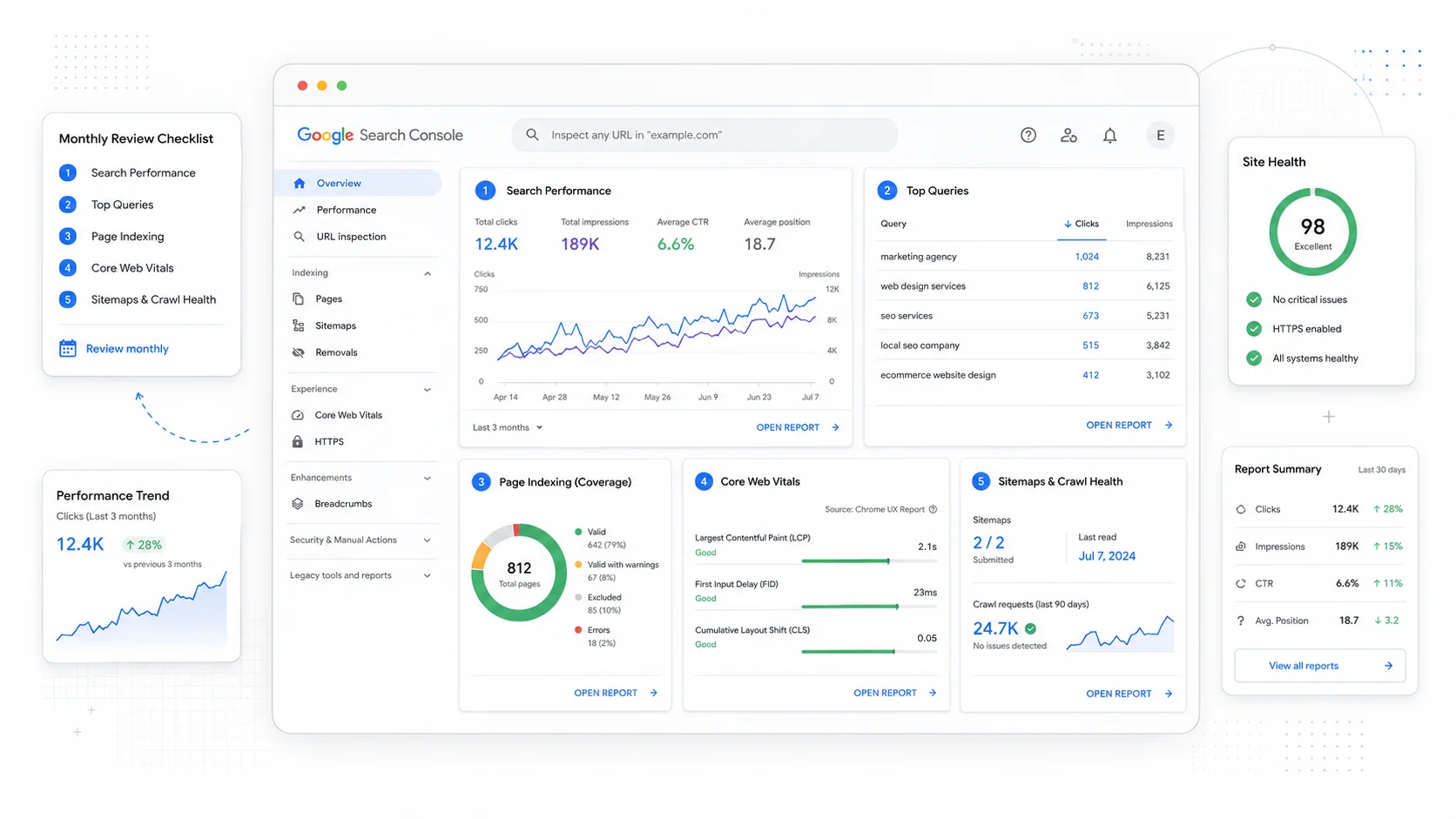
Most small business owners check Google Search Console once, get overwhelmed by the dozen reports and the unfamiliar terminology, and never log back in. Six months later, indexing has quietly broken on the services page, the Core Web Vitals score has dropped, and three pages have been hit with manual actions nobody noticed. None of that would have surfaced in any other tool.
Google Search Console is the most important SEO monitoring tool you have, it is free, and you do not need to use most of it. Five reports cover 90% of what a small business actually needs to know. Thirty minutes a month is enough to catch the problems that would otherwise cost you traffic for quarters.
This guide covers those five reports — what they tell you, what to look for, and the concrete action to take when the numbers move in the wrong direction.
Before You Start: Confirm the Property Is Set Up Right
If you have not yet set up Search Console properly, this is non-negotiable. Set up a Domain property, not a URL prefix property. The domain property covers all subdomains and protocols (http, https, www, non-www, m. mobile subdomains). The URL prefix property covers only the exact variant.
Google's Search Console verification documentation covers the setup. The DNS verification path takes ten minutes and saves you from missing data forever after.
Once verified, give Search Console a few weeks to accumulate data before you draw conclusions from it. The Performance report shows the trailing 16 months by default; the historical baseline matters more than any single week.
Report 1: Performance — What You Rank For and What People Click
The Performance report is the heart of Search Console. It shows every query your site appeared for, every page that received impressions, the position you held, and the clicks you earned. Every other report supports decisions you make based on this one.
Open the Performance report and enable all four metric toggles: Total clicks, Total impressions, Average CTR, Average position.
What to check monthly:
- Total clicks vs the previous 28 days. Trending down is your earliest warning sign that something is wrong.
- Top 10 queries by impressions. These are the queries that drive your visibility. If you do not recognise some of them, that is interesting — a long-tail query you never targeted is gaining traction.
- Top 10 queries by clicks. These are the queries that produce real traffic. Confirm the pages they land on are the ones you would want them to land on.
- Pages tab, sorted by impressions. Your most-seen pages, in order. If a service page you care about is not in the top 20, ranking is not the issue — visibility is.
- Queries with high impressions and low CTR. These are pages that appear in search but do not get clicked. Almost always a title tag or meta description fix.
The single most useful filter: position 5–20 by query. Open the Position filter and set it to "less than" 21 and "greater than" 4. The queries that come back are the ones where you are close to winning a click but not quite there. Improving these is far cheaper than chasing brand new keywords.
Google's Performance report documentation covers every metric in detail. The discipline is not learning the report — it is checking it consistently and acting on what changes.
Concrete actions when something looks off:
- Total clicks dropped >15% month over month: investigate which pages lost traffic. Likely an indexing issue, a content change, or a competitor moving up.
- A specific query disappeared from your top 10: check if the page is still indexed and ranking; sometimes the query has changed in seasonality.
- High-impression, low-CTR query: rewrite the title tag and meta description on the landing page. Watch the next 28 days.
- A new query appears in your top 10 you never targeted: consider building a dedicated page or strengthening the existing one.
Report 2: Pages (Indexing) — What's In and What's Out
The Pages report (formerly Index Coverage) is the second-most-important report and the one most small business sites have problems hiding in. It tells you which URLs Google has indexed, which it has excluded, and why.
Open the Pages report and look at the two top-line numbers: Indexed pages and Not indexed pages. Both deserve attention, but the second is where the problems live.
Common "Not indexed" reasons and what they mean:
- Discovered – currently not indexed. Google knows the URL exists but has not crawled it. Often a thin-content or low-priority signal. If many pages sit here, the site may have crawl-budget pressure or quality issues.
- Crawled – currently not indexed. Google fetched the page and decided not to index it. A direct quality signal. Look at the actual page.
- Excluded by 'noindex' tag. Confirm every URL was meant to be excluded. A
noindexaccidentally left on a service page is the single most common catastrophic SEO mistake. - Duplicate without user-selected canonical. Google picked a canonical for you. Sometimes correct; sometimes worth overriding with explicit canonicals.
- Page with redirect. Usually fine, but check for redirect chains.
- Soft 404. A page returning a 200 status code but appearing empty or like a not-found page. Almost always a templating bug.
- Server error (5xx). Investigate immediately. Server errors during crawls cause Google to back off.
Google's Page indexing documentation covers every status. The discipline is to scan the "Why pages aren't indexed" section monthly and confirm nothing important has slipped into the wrong bucket.
Concrete actions:
- A core service page appears under "Excluded by 'noindex' tag": remove the noindex, request indexing in the URL Inspection tool.
- A new page from last month is "Discovered – currently not indexed": add internal links to it from authoritative pages on the site.
- Server errors appear: contact your host. Server errors during crawls signal stability problems.
- Your indexed page count drops noticeably: cross-reference with the Performance report and the Pages report to find which URLs disappeared.
You can also check any specific URL with the URL Inspection tool at the top of the screen. It tells you Google's last-crawl status, the canonical Google chose, the indexing status, and whether the page is mobile-friendly. Use it whenever you publish a new page or update a critical one.
Report 3: Core Web Vitals — Real-User Performance Data
Core Web Vitals data in Search Console comes from real Chrome users, not lab tests. It is the field data Google uses for ranking. The report bucket URLs into "Good," "Needs improvement," and "Poor" based on the thresholds defined on web.dev.
The three metrics:
- LCP (Largest Contentful Paint): how fast the main content renders. Good is ≤2.5 seconds.
- INP (Interaction to Next Paint): how responsive the page feels when interacted with. Good is ≤200ms.
- CLS (Cumulative Layout Shift): how much the layout shifts during load. Good is ≤0.1.
Open the Core Web Vitals report under "Experience." It shows mobile and desktop separately. Mobile is usually where the problems are.
What to check monthly:
- The trend line for "Good" URLs. If it is rising, the site is improving; if it is falling, something has regressed.
- The "Needs improvement" and "Poor" buckets — Google groups URLs by similar issues. Each group represents a class of pages, not just one.
- Click into any group to see example URLs and the specific metric failing.
Google grades performance at the 75th percentile of users, which means a few slow visits can move the bucket. The metric is also delayed — recent fixes take 28 days to fully reflect.
Concrete actions:
- LCP failing on a group of pages: check the hero image. Is it compressed, sized correctly, served in AVIF or WebP, and not lazy-loaded? Most LCP failures trace back to oversized hero media.
- INP failing on a group: audit third-party scripts. Marketing tags, chat widgets, and heavy JavaScript components are the usual culprits.
- CLS failing on a group: check images for missing width/height, and look for late-loaded ads or banners.
- A new "Poor" bucket appears: cross-reference with deploys. A recent change probably introduced the regression.
Pair this report with PageSpeed Insights for any specific URL you need to debug. PageSpeed Insights gives you both lab and field data for one page, plus specific opportunities to fix.
For deeper coverage on what each metric means and how to fix common issues, our guide on Core Web Vitals page speed strategies walks through the practical fixes.
Report 4: Sitemaps — The Health Check You Forget About
The Sitemaps report under "Indexing" is the simplest of the five and the one that catches embarrassing problems quietly.
What to confirm monthly:
- Your sitemap status is "Success." Any errors mean Google had a problem reading the file.
- The "Discovered URLs" count matches roughly what you expect. A site with 80 pages should not have a sitemap with 8000 URLs (almost always a CMS bug producing parameter URLs) or 12 URLs (the sitemap is broken).
- The "Last read" date is recent. Google does not refetch sitemaps frequently; if the date is months old, your sitemap is not getting attention.
If your sitemap status is anything other than "Success":
- Open the sitemap URL in a browser and confirm it loads.
- Validate the XML structure with Google's sitemap testing guidance.
- Confirm the sitemap is referenced in your
robots.txtfile with aSitemap:directive. - Re-submit the sitemap if you made changes.
Concrete actions:
- "Couldn't fetch" status: the URL is unreachable. Check that the file actually exists and that nothing in robots.txt is blocking it.
- Sitemap shows far more URLs than your site has: a parameter or pagination explosion. Check the CMS settings.
- Sitemap shows far fewer URLs than your site has: a configuration limit (often 50,000 URLs per sitemap). Split into multiple sitemaps by section.
For sites with significant content, consider splitting the sitemap by section: services, blog, locations, projects. The per-sitemap indexing numbers in Search Console then tell you which section of the site has indexing problems, which is far more actionable than a single aggregate number.
Report 5: Manual Actions and Security Issues — The "Should Be Empty" Reports
The Manual Actions and Security Issues reports under "Security & Manual Actions" should both show "No issues detected" almost all the time. When they do not, you have a problem that needs immediate attention.
Manual Actions are penalties applied by Google's webspam team after a human review. They suppress some or all of your search visibility. Common reasons covered in Google's manual actions documentation:
- Unnatural inbound links (your site has manipulated backlinks).
- Unnatural outbound links (your site sells links, often via hacked content).
- Thin content with little or no added value.
- Cloaking or sneaky redirects.
- Pure spam.
- Hacked content.
If a manual action appears:
- Read the description carefully. Google tells you what was found and which URLs are affected.
- Fix the issue completely. Half-fixes get rejected.
- Submit a reconsideration request through the report itself, with a clear explanation of what was wrong, what you did to fix it, and what you will do to prevent it in future.
- Expect a wait of 1–4 weeks for review.
Security Issues flag pages on your site that Google has detected as compromised — malware, deceptive pages, harmful downloads, social engineering content. This is almost always the result of a hack rather than something you did.
If a security issue appears:
- Take the affected pages offline immediately or restore from a clean backup.
- Identify how the compromise happened (outdated CMS, leaked credentials, vulnerable plugin).
- Patch the vulnerability before bringing the site back up.
- Submit a security review through the report.
Google's hacked sites troubleshooter is the right starting point if you find yourself in this situation. For most small businesses, a security issue is the worst-case Search Console event. Faster response means smaller traffic loss.
The reason to check these reports monthly even when they are usually empty is that the consequences of missing one are severe. A site that loses search visibility from a manual action and only notices three months later has a much harder recovery than one that addresses the issue within days.
Bonus: Two Reports to Glance at Quarterly
Beyond the monthly five, two more reports deserve a quarterly look.
Mobile Usability (under Experience) used to be its own report and is now folded into other indexing checks. Run a few of your most important pages through the URL Inspection tool quarterly to confirm mobile rendering is clean.
Links (under Links in the left navigation) shows your top linked pages, top linking sites, and most common anchor text. Useful for tracking link-building progress and catching unusual patterns. A sudden spike in links from low-quality domains might indicate a negative SEO attempt or a competitor's spam campaign — rare, but worth knowing about.
For more on building a clean link profile, our guide on link building for local service businesses covers the tactics that actually work.
Setting Up Email Alerts (Do This Once)
Search Console sends email alerts for serious issues — manual actions, security problems, indexing crashes, sudden Core Web Vitals regressions. Confirm your email is correct under Settings → Users and Permissions, and that alerts are turned on.
This is the safety net for the months you forget to log in. The email is usually the first sign that something significant has changed.
A 30-Minute Monthly Routine
If you want a routine that takes half an hour and catches almost everything that matters, here is the sequence:
- 5 minutes: Open the Performance report. Compare last 28 days vs previous 28 days. Note total clicks, total impressions, and any queries that have moved meaningfully.
- 10 minutes: Open the Pages report. Scan the "Why pages aren't indexed" section. Confirm no important pages have moved into the wrong bucket.
- 5 minutes: Open Core Web Vitals. Confirm the trend line for Good URLs is stable or rising. Note any new "Poor" groups.
- 3 minutes: Open Sitemaps. Confirm "Success" status and a roughly correct URL count.
- 2 minutes: Open Manual Actions and Security Issues. Confirm both show "No issues detected."
- 5 minutes: Pick one underperforming page from the Performance report (position 5–20, low CTR) and write down a specific fix.
That is the entire monthly routine. Six items, half an hour, and you will catch the problems that quietly cost most small businesses traffic for months at a time.
The teams that get the most out of Search Console are not the ones who use every feature. They are the ones who check the same five reports consistently, act on what the data tells them, and notice problems early enough to fix them cheaply. That discipline is worth more than any premium SEO tool.
If you would prefer to have someone else watch this each month and surface the issues that matter, our website care plans include monthly Search Console reviews on every site we maintain, paired with the SEO-focused website builds we ship so most issues never appear in the first place. Either way, schedule the 30 minutes on your calendar this week. The first review usually surfaces something worth fixing.
More posts from the blog.
From Contact Form to CRM: The Minimum Lead Pipeline Every Service Business Should Automate
A practical lead pipeline for service businesses: connect forms, calls, email, CRM records, reminders, follow-ups, and reporting so good leads stop disappearing.
The 2026 Website Content Refresh Playbook: Updating Old Pages Without Breaking SEO
A practical content refresh process for small business websites: how to update stale pages, preserve rankings, improve AI search visibility, and avoid SEO mistakes.
The AI Chat Widget Decision: When It Helps Leads and When It Hurts Trust
AI chat widgets can qualify leads and answer common questions, but they can also slow the site, invent answers, mishandle privacy, and damage trust. Here is how to decide.
Keep reading?
More field notes from building modern websites and software for real businesses.