
How to Make a Clickable Phone Number in WordPress: The Complete Guide
A step-by-step guide to adding a clickable, tap-to-call phone number in WordPress — Block Editor, Classic Editor, every major page builder (Elementor, Divi, Beaver Builder, Bricks, Oxygen, Breakdance), theme header settings, click-to-call plugins, click tracking, schema markup, and accessibility.
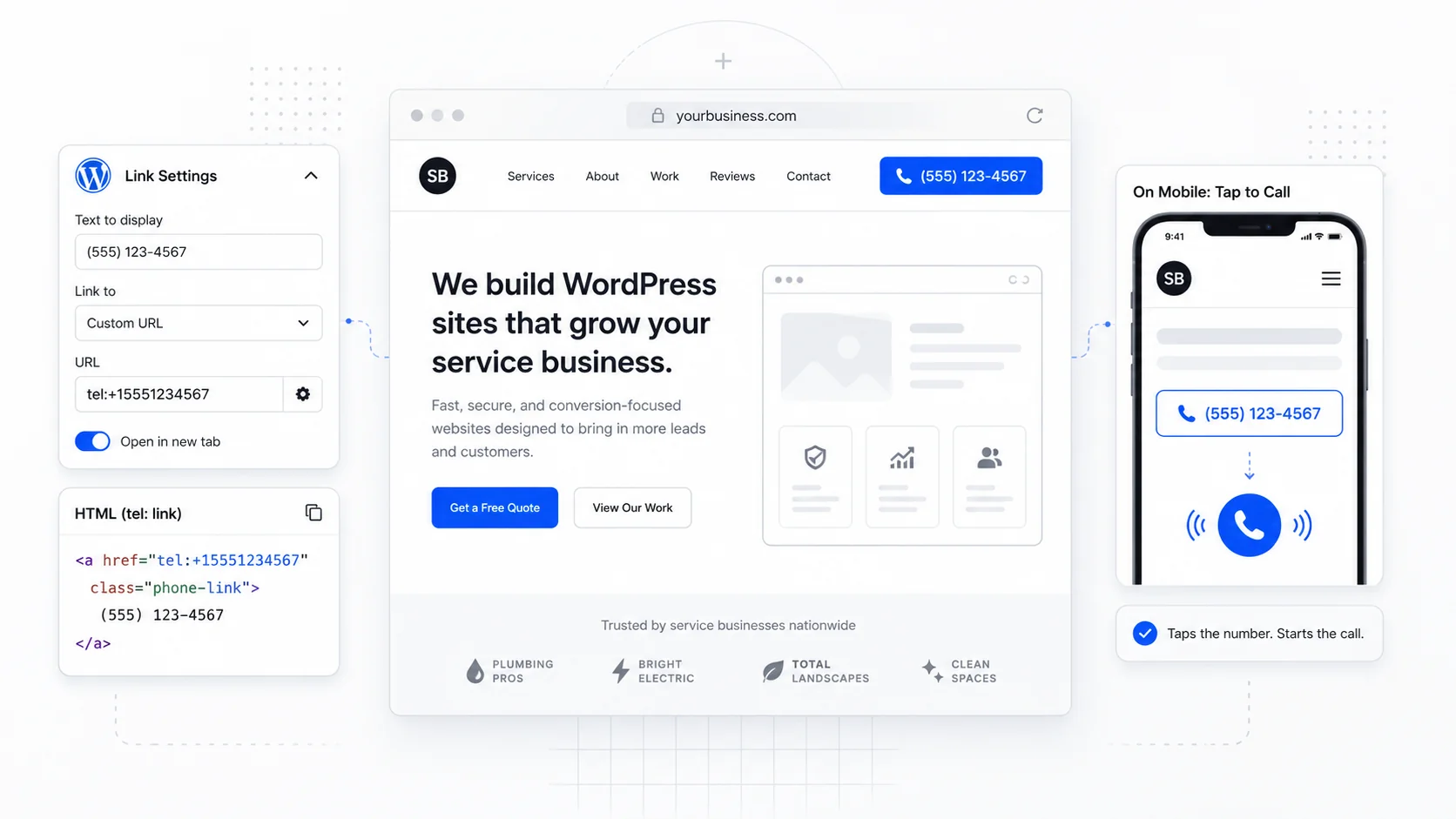
A clickable phone number — the kind a visitor can tap on a phone to dial straight away — is one of the highest-ROI changes you can make to a service business website. It costs nothing, takes a minute, and turns "where do I call them?" friction into a single tap.
This guide covers every method we use across the hundreds of WordPress sites we have shipped at Sites That Grow, from the bare HTML snippet you can paste into any theme to the dedicated header phone fields in Astra, Kadence, GeneratePress, and Avada. It also covers every major page builder, block themes with the Site Editor, click-to-call plugins, click tracking with GA4, schema markup for SEO, and the accessibility considerations most guides skip.
The entire trick, before we go any further, is one line of HTML:
<a href="tel:+15551234567">(555) 123-4567</a>
Everything else in this article is variations on that line — the right phone number format, where to drop it inside WordPress depending on how your site is built, and how to make sure search engines, analytics, and screen readers all handle it cleanly.
What "Clickable Phone Number" Actually Means
A clickable phone number is just an <a> element — the same anchor tag that powers every link on the web — pointed at a tel: URL instead of an https: one. Browsers, mobile operating systems, and most desktop OSes recognise the tel: scheme and offer to dial the number, route it to a softphone, or open the system phone app.
The tel: URI scheme is formally defined in RFC 3966, and the MDN documentation for the <a> element covers the practical syntax. A useful overview of edge-case desktop behaviour lives in CSS-Tricks' "current state of telephone links".
There are three things to keep separate when you build one:
- The href value — the machine-readable phone number, ideally in E.164 format, with no spaces, dashes, or parentheses.
- The visible text — the human-readable formatted number a visitor reads on screen.
- The schema metadata — the structured data you add for search engines.
You can mix any visible format you like with a clean machine-readable href:
<a href="tel:+15551234567">Call us at (555) 123-4567</a>
The Right Format: E.164 and Why It Matters
E.164 is the international telephone numbering standard. It always starts with +, includes the country code, and contains no spaces or punctuation:
| Display format | E.164 (tel: href) |
|---|---|
| (555) 123-4567 | tel:+15551234567 |
| 555-123-4567 | tel:+15551234567 |
| 020 7946 0958 | tel:+442079460958 |
| +1 (212) 555-0199 | tel:+12125550199 |
Three reasons this matters more than people expect:
- Predictable dialling across regions. A US visitor on a US phone, a US visitor roaming abroad, and an international visitor all need the country code to reach you reliably.
- Softphones and CRM dialers prefer E.164. Tools like RingCentral, Aircall, and HubSpot expect
+1...form and may fail or misroute without it. - Schema validators flag non-E.164 phone numbers as warnings, which weakens your structured data and your local-pack signal.
The visible text can stay friendly and human. Only the href value needs to be machine-clean.
Method 1: WordPress Block Editor (Gutenberg)
The Block Editor is the default editor in any modern WordPress install. It is the simplest, most reliable place to add a clickable phone number.
- Open the page or post where you want the phone number.
- Add a Paragraph block, or use an existing one.
- Type the formatted number — for example,
(555) 123-4567. - Select the text.
- Click the link icon in the block toolbar (or press Ctrl/Cmd + K).
- In the link field, type
tel:+15551234567— no spaces, with the country code. - Press Enter.
A small but real gotcha: the link suggester searches your existing site content as you type. Make sure to press Enter to commit the literal tel: URL instead of letting the suggester pick a page. If the prefix looks stripped after clicking out, click the link again and verify the URL still starts with tel:.
The same flow works for Headings, list items, and any text-bearing block. The official WordPress link editing documentation and the Paragraph block reference cover the broader link control.
Method 2: Classic Editor / TinyMCE
If your site still uses the Classic Editor — either by choice or because of legacy plugin compatibility — the flow is similar.
- Open the page in the Classic Editor.
- Type or paste the formatted phone number.
- Select the text.
- Click the Insert/edit link chain icon in the toolbar.
- Paste
tel:+15551234567into the URL field and apply.
If the Visual editor strips the tel: prefix or refuses to recognise it, switch from the Visual tab to the Text tab and paste the raw HTML directly:
<a href="tel:+15551234567">(555) 123-4567</a>
Method 3: Plain HTML Block (Works Anywhere)
The Block Editor includes a Custom HTML block that lets you drop raw HTML anywhere on a page. It is the universal escape hatch for "this builder is fighting me."
- Add a new block.
- Search for Custom HTML.
- Paste:
<a href="tel:+15551234567" class="phone-link">(555) 123-4567</a>
- Style it via your theme's CSS or a Custom CSS panel:
.phone-link {
  display: inline-flex;
  align-items: center;
  gap: 0.5rem;
  font-weight: 600;
  text-decoration: none;
}

.phone-link:hover {
  text-decoration: underline;
}
This is the method we reach for when a builder's link field misbehaves with tel: URIs, or when a theme's restricted toolbar doesn't expose the link control.
Method 4: Page Builders
Most major page builders accept tel: URLs directly in any link field — but each one has slightly different controls and a couple of useful built-in features.
Elementor
Elementor explicitly supports tel: links and documents the pattern in their official "clickable phone links" help article.
- Edit the page in Elementor.
- Drag in a Button widget — or use an existing Heading, Text Editor, or Icon Box.
- In the Content tab, locate the Link field.
- Type
tel:+15551234567directly into the link input. - Press the small wrench / Apply, or click outside the field.
- Update the page.
Elementor Pro adds a Dynamic Tags menu (a small database icon on the link field) where you can pull a phone number from a custom field or site setting — useful when the same number appears in many places across a site.
Divi (Elegant Themes)
Divi's Button Module documentation covers the link field. The same principle works on any module with a "Module Link URL" or "Link URL" setting.
- Click the gear icon on a Button Module — or any module with a link option.
- Open the Content tab → Link section.
- Paste
tel:+15551234567into the Button Link URL field. - Set "Open Link in New Window" to No — you do not want phone links opening empty tabs.
- Save.
To wrap a phone number inside a Text Module, use the WYSIWYG link tool the same way you would the Classic Editor.
Beaver Builder
The Beaver Builder Button module docs cover the Link field.
- Drag in a Button module, or use an existing one.
- In the Settings panel → General tab → Link field.
- Type
tel:+15551234567. - Save.
For text-based links, Beaver's Text Editor module uses a standard TinyMCE link control; paste the tel: URL into the URL field there.
Bricks Builder
Bricks accepts tel: URLs in its standard link control. The Bricks community has documented this in the Bricks forum thread on telephone call links.
- Select the element you want to make clickable.
- In the right-side controls, find the Link control.
- Set Link Type to External URL, or use the link control on a Button element.
- Paste
tel:+15551234567.
For Bricks's dynamic data, the :tel filter wraps a value as a tel: link automatically when used in link contexts.
Oxygen Builder
Oxygen's Text Link element documentation and the link controls on Buttons accept tel: URLs out of the box.
- Select the Text Link, Button, or any linkable element.
- In the Primary controls, locate the URL field.
- Paste
tel:+15551234567. - Save.
WPBakery Page Builder
WPBakery's element link fields accept tel: URIs without a special setting.
- Edit the element — Button, Text Block, Icon, etc.
- Click the URL / "Select URL" picker on the link field.
- Paste
tel:+15551234567and apply.
Breakdance
Breakdance is one of the few page builders with explicit support for the tel: scheme as a first-class option. The Breakdance link controls documentation lists "Tel" under the Contact Link Type.
- Select the element — Button, Heading, etc.
- Open its Link control.
- Set Link Type to Contact.
- Choose Tel as the URI Scheme.
- Enter the phone number — Breakdance prefixes the
tel:for you. - Save.
Page builder quick reference
| Builder | Where to paste tel: | Built-in scheme picker |
|---|---|---|
| Elementor | Any Link field | No (manual tel:) |
| Divi | Module Link URL | No (manual) |
| Beaver Builder | Link field | No (manual) |
| Bricks | Link control | No (manual; :tel filter for dynamic) |
| Oxygen | URL field | No (manual) |
| WPBakery | Select URL | No (manual) |
| Breakdance | Link control | Yes — Contact → Tel |
Method 5: Theme Header Phone Number
Many WordPress themes expose a built-in slot for a header phone number. Adding it once at the theme level puts the click-to-call link on every page in the site without touching individual layouts.
Astra
Astra's Header Builder doesn't ship a dedicated "phone" element, but its HTML element and Button element both accept tel: URLs. The official Astra Header Builder elements documentation covers the available components, and the Header Builder setup guide walks through the structure.
- Customize → Header Builder.
- Drop in either an HTML element or a Button element in the desired header row.
- For HTML: paste
<a href="tel:+15551234567">(555) 123-4567</a>. - For Button: set the Link to
tel:+15551234567and the Text to your formatted number. - Publish.
GeneratePress
GeneratePress doesn't have a dedicated header phone widget either, but two clean options: a Header widget area with a Custom HTML widget, or a GP Hooks Element that injects HTML into a hook (see the GeneratePress mobile header docs for hook locations).
The widget-area route:
- Customize → Layout → Header → enable a header widget area.
- Customize → Widgets → drop a Custom HTML widget into that area.
- Paste your
tel:link. - Publish.
Kadence
Kadence has the cleanest dedicated solution. The Header Builder includes a built-in Contact item, covered in Kadence's contact information documentation and the broader header customisation guide, with separate fields for tel, SMS, hours, and address.
- Customize → Header → drag the Contact item into a header row.
- Open its settings.
- Enable the Tel entry.
- Set the visible text and the
tel:+...URL. - Publish.
Avada
Avada surfaces phone numbers inside its Header content options. The Avada header layouts documentation explicitly shows the <a href="tel:+..."> pattern for header content.
- Avada → Options → Header.
- Locate Header Content #1 / #2 depending on which area you want to use.
- Choose the contact-info option, or insert custom HTML.
- Use
<a href="tel:+15551234567">(555) 123-4567</a>. - Save.
Method 6: Block Themes (Site Editor / FSE)
Block themes — Twenty Twenty-Five, Twenty Twenty-Four, and any theme that opts into Full Site Editing — let you edit the header itself in the Site Editor instead of the Customizer. The official Site Editor documentation and the Template Part block reference explain the mechanics.
- Appearance → Editor.
- In the Site Editor sidebar, open Patterns → Template Parts → Header.
- Add or select a Paragraph or Button block within the header.
- Type your formatted phone number, select it, click the link icon.
- Paste
tel:+15551234567and press Enter. - Save the template part — it now applies across every page using that header.
Method 7: Click-to-Call Plugins
If editing HTML, fighting a builder, or wiring up a header element feels like more friction than the work justifies, dedicated plugins exist that drop a sticky "Call Now" button onto every page. The WordPress.org click-to-call plugin tag lists current options. Four reputable picks:
- WP Call Button — adds a configurable click-to-call button anywhere on the site via shortcode or sticky widget.
- Call Now Button — long-running plugin focused specifically on a mobile sticky bottom call button.
- Buttonizer — multi-action floating button supporting tel, SMS, WhatsApp, and email.
- Click To Dial — automatically converts plain phone numbers in your content into
tel:links.
Plugin trade-offs: every plugin adds maintenance burden (security patches, version compatibility) and a small amount of front-end weight. For a single number in the header, hard-coding the tel: link is faster, lighter, and more durable. For a multi-channel sticky button (call + WhatsApp + email + SMS), a plugin is the right tool.
Tracking Phone Clicks (GA4 / GTM)
A clickable phone number is only as useful as your ability to count taps. Google Tag Manager makes this five-minute work.
- In GTM, create a new Trigger of type Click - Just Links — see the GTM trigger types documentation.
- Set the trigger to fire on Some Link Clicks.
- Add the condition: Click URL starts with
tel:. - Create a new Tag of type Google Analytics: GA4 Event — see the GA4 events overview.
- Configure the Event Name as
phone_number_click. - Add an Event Parameter: name
link_url, value{{Click URL}}. - Attach the trigger you just made.
- Publish the GTM container.
You should start seeing phone_number_click events in GA4 within a few minutes. Mark it as a Key Event (the new name for "conversion") if you want it visible in conversion reports.
For sites that don't use GTM, GA4's enhanced measurement does not track tel: clicks automatically. A small inline event handler works as a fallback:
<a
  href="tel:+15551234567"
  onclick="gtag('event','phone_number_click',{link_url:'tel:+15551234567'})"
>
  (555) 123-4567
</a>
For sites where call quality matters more than count, services like CallRail and CallTrackingMetrics swap the visible number for a tracked forwarding number while leaving your tel: href pointing at the real line — useful for marketing attribution but more setup than most small business sites need.
Schema Markup for Phone Numbers
For local businesses, the phone number belongs in your structured data. Schema.org defines a telephone property that fits inside Organization, LocalBusiness, and ContactPoint. Google's official LocalBusiness structured data documentation covers what to include for the local pack and rich results.
A minimal LocalBusiness JSON-LD block that includes the phone number:
<script type="application/ld+json">
{
  "@context": "https://schema.org",
  "@type": "LocalBusiness",
  "name": "Example Plumbing Co.",
  "url": "https://example.com",
  "telephone": "+15551234567",
  "address": {
    "@type": "PostalAddress",
    "streetAddress": "123 Main St",
    "addressLocality": "Springfield",
    "addressRegion": "IL",
    "postalCode": "62701",
    "addressCountry": "US"
  }
}
</script>
Drop the script into the <head> via your theme's header file, a header-injection plugin, or your SEO plugin's schema feature — Rank Math, Yoast, and SEOPress all expose this in their dashboards.
The telephone value should be in E.164 format for maximum compatibility with Google's parser. Validate the markup with the Rich Results Test before pushing it live.
For a deeper take on schema across all the page types a small business website usually needs, see our practical guide to schema markup for small business websites.
Accessibility Best Practices
A clickable phone number is mostly accessible by default — the visible number IS the link text, which satisfies WCAG 2.4.4 Link Purpose (the ARIA8 technique documentation covers the broader principle).
The two scenarios where you might add aria-label:
- Icon-only call buttons. A floating "📞" button has no visible text. Add
aria-label="Call (555) 123-4567"so screen readers know what it does. - Decorative emoji or icons before the number. If the visible text is "📞 (555) 123-4567" the screen reader will read out "telephone receiver black telephone five five five..." which works but is verbose. An
aria-label="Call (555) 123-4567"cleans it up.
The VA.gov Design System Telephone component gives the canonical accessibility guidance: when the visible text is the formatted number, do not override it with a less-readable aria-label. Screen-reader users want to hear the digits.
For broader link accessibility, the WebAIM WCAG 2 checklist is the most readable industry reference, and our own website accessibility guide covers the practical implications for small business sites.
Common Mistakes and Quick Fixes
A short troubleshooting list, in rough order of how often we see them on real sites:
- Spaces or dashes in the href.
tel:(555) 123-4567may work but isn't reliable across systems. Always use clean digits with a leading+. - Missing country code.
tel:5551234567works for US visitors on US phones, but fails for international visitors and many softphones. Always include the country code. telephone:instead oftel:. The scheme istel, nottelephone. The longer form does nothing.- Setting "open in new tab" on phone links. Don't — it leaves an empty browser tab behind on every successful call attempt.
- Letting the builder's autocomplete strip the prefix. Always verify after clicking away that the link still starts with
tel:. - Heavy underline weight. Phone links often appear in bold or eyebrow text where a default underline looks heavy. Override with
text-decoration: noneand a hover state. - Hiding the number on desktop. This is a frequent "performance optimisation" with no real upside — see the section below.
- Using a different number from your Google Business Profile. Whatever number you display on the site must match the number registered in your Google Business Profile, or the local pack signal weakens.
Should the Number Only Be Clickable on Mobile?
A common question from clients: should we hide the click-to-call functionality on desktop, on the assumption that desktop users can't dial?
The honest answer is no. There is no reliable way to detect "this user has a phone capability," and you penalise visitors with VoIP, system softphones (FaceTime audio, Skype, Teams), Google Voice, work conferencing tools, and assistive technology for no real benefit. Leave the link clickable everywhere. If a desktop visitor without a softphone clicks, the OS gracefully prompts them to choose an app or copy the number.
If you really want differentiated styling, target the link at narrow screens with CSS media queries — but keep the underlying link clickable on every device.
Bonus: SMS Links (sms:)
The sms: URI scheme works the same way tel: does, with one extra trick: you can prefill a message body using the ?body= query parameter:
<a href="sms:+15551234567?body=Hi%20-%20can%20you%20send%20a%20quote%3F">
  Text us
</a>
This is a strong fit for trades and service businesses where customers are more likely to text than call. The same SEO, schema, and tracking principles apply — and you can layer both on the same page (a tel link for the call-now folks, an sms link for the after-hours folks).
Where to Put the Phone Link On the Page
A number that's clickable but buried doesn't help anyone. The placements that consistently move the needle on small business sites:
- Top-right of the header, visible without scrolling, as a mono-style "Call (555) 123-4567" link or a bordered ghost button.
- In the mobile sticky bar at the bottom of the screen, as one of two or three primary actions (call, directions, book).
- Immediately after the customer-objection paragraph on landing pages — usually somewhere around the social-proof section, where the visitor has just decided "okay, this might be the one."
- In the footer, alongside the address and hours, as part of the NAP (Name / Address / Phone) block that also feeds your structured data.
- On every service page, in the same position relative to the page (consistency lets repeat visitors find it without thinking).
The microcopy next to the number matters as much as the link itself. "Call us" is fine; "Call (555) 123-4567 — we usually pick up" is better. We covered this in microcopy: the tiny words that decide whether people buy.
How We Approach This for Clients
We have built and managed hundreds of WordPress sites at Sites That Grow, including content-heavy directories like SeniorCenters.com and LocalCatholicChurches.com, where click-to-call links are part of the listings themselves and tracked at scale.
A few patterns we use repeatedly:
- The phone number lives in one canonical place — a theme setting, ACF field, or site option — and is rendered into every header, footer, sticky button, and schema block from that single source. Updating the number across the site takes one change.
- Every phone link has GTM tracking from launch, not bolted on later. We default to a
phone_number_clickevent with the URL as a parameter, so attribution is consistent across sites. - Schema markup is embedded in JSON-LD via the SEO plugin, with E.164 formatting verified in the Rich Results Test before launch.
- For small business marketing sites, the click-to-call lives in the header, on every service page, on the contact page, and in the immediate aftermath of the strongest customer-objection paragraph.
- For directory sites, click-to-call is rendered per-listing with proper schema and tracked at the listing level so we can show advertisers their actual call volume — that's how SeniorCenters.com and LocalCatholicChurches.com prove ROI to advertisers each month.
If your current site doesn't have click-to-call set up cleanly — or has a number hard-coded in twenty places — that is almost always a sign the site needs the same kind of structural cleanup we cover in our SEO-friendly redesign checklist and offer as part of website care and maintenance.
The Practical Takeaway
A clickable phone number is one anchor tag pointed at a tel: URL with the number in E.164 format inside the href. The rest is plumbing: where you put it inside WordPress, how you track clicks, how you mark it up for search engines, and how you make sure screen readers and desktop browsers handle it cleanly.
The right method depends on how your site is built:
| If your site is built with... | Use |
|---|---|
| Default WordPress + Block Editor | Method 1 (Block Editor link control) |
| Classic Editor / TinyMCE | Method 2 (link dialog or HTML view) |
| Any restricted theme | Method 3 (Custom HTML block) |
| Elementor / Divi / Beaver / Bricks / Oxygen / WPBakery | Method 4 (builder link field) |
| Breakdance | Method 4 with the Tel scheme picker |
| Astra / GeneratePress / Kadence / Avada | Method 5 (theme header element) |
| Block theme with FSE | Method 6 (Site Editor template part) |
| Need a sticky multi-channel button | Method 7 (plugin) |
For most small business sites, the right answer is some combination of the header phone link plus a JSON-LD schema block — set up once at launch, tracked from day one, and visible everywhere it actually moves a customer toward picking up the phone.
If you would rather have someone handle the whole stack — the build, the schema, the tracking, and the redesign work that often comes with it — that's the kind of thing we do every day with our website design and development and SEO-focused website builds services.
More posts from the blog.

From Contact Form to CRM: The Minimum Lead Pipeline Every Service Business Should Automate
A practical lead pipeline for service businesses: connect forms, calls, email, CRM records, reminders, follow-ups, and reporting so good leads stop disappearing.
The 2026 Website Content Refresh Playbook: Updating Old Pages Without Breaking SEO
A practical content refresh process for small business websites: how to update stale pages, preserve rankings, improve AI search visibility, and avoid SEO mistakes.

The AI Chat Widget Decision: When It Helps Leads and When It Hurts Trust
AI chat widgets can qualify leads and answer common questions, but they can also slow the site, invent answers, mishandle privacy, and damage trust. Here is how to decide.
Keep reading?
More field notes from building modern websites and software for real businesses.